
Getting Started with D2L
Welcome to Module 3. In this module we will be taking a tour of Fleming College’s Learning Management System (LMS), MyCourses (D2L).
We hope that watching the video above helped to orient you to MyCourses (D2L). In this module, our goal is to make you more comfortable with how to get your courses up and running, connect you with the other faculty who are teaching in the course (if there are any), and familiarize you with resources that will support you throughout the semester.
Okay, let’s roll our sleeves up and get started!
Once course shells for a new semester are available to faculty, the LDS Team sends out information to help you get started with D2L and set up your courses. The information is sent to you as a checklist:
The course shells in D2L are ready for faculty access
Faculty are encouraged to get their courses ready prior to the semester in the following way:
1. Copy course content into your NEW course shells using these (instructions) If you are NOT able to copy content into your course, you can request the content to be rolled over by sending an email to LDSTeam@flemingcollege.ca
2. Add the link to the approved course outline. (instructions)
3. Edit and/or update course materials, including release dates for content and assessments. (instructions)
4. Add a welcome message via the News tool to your course page. (instructions – go to item #5 for how to use the News tool in your courses)
5. Create attendance records. (instructions)
6. Check out the Virtual Classroom! The Virtual Classroom lets you host an interactive class remotely (with a presentation, whiteboard, chat, video, and audio), host virtual office hours, OR host facilitated discussions and test/assignment prep. Check out the details! (instructions)
All D2L help and tip sheets are located right on the D2L Homepage.
Go ahead, try the instructions that are the most important to you at this time. Please don’t hesitate to reach out to us if you have any questions or need more information: LDSTeam@flemingcollege.ca
If you are setting up a course with all of your own content materials, or are developing a new course, we suggest using your course outline as your guide to setting up D2L.
Let’s go find your course outline.
You can find your course outline through the myCampus Portal by following these instructions: From the home page of Fleming’s myCampus portal, click “More Applications” in the left sidebar, then pick Course Outlines. This will open a new tab in Evolve where you can View Approved Course Outlines and then conduct a search using the Academic Year, Subject Area, and Catalog Nbr (where Subject Area is the four letters of the course code and Catalog Nbr is the one to three-digit number of the course code). Then copy the Public URL link and link it to your D2L course page.
For more detailed instructions, please use the How to Guides and Resources on the Academic Operations Website.
Try this Activity
Can you find your course outline? Is there a link to it in D2L? In this activity you can follow the instructions above to find your course outline and, if required, to link it to your course page.
If you need help don’t be afraid to reach out to us! You can email the LDSteam@flemingcollege.ca or call extension 1216.
These next steps can be followed in the order you prefer:
A. Setting Up Your Course Content:
Your course outline provides a weekly list of topics, resources and assessments:
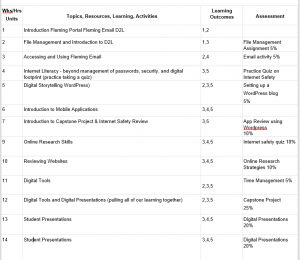
Example from CICE 2 Digital Literacy
Go ahead and get started with adding content to your course: Organizing Your Course (instructions).
B. Your course outline also provides you with information to set up your gradebook: Accessing Grades and Setting up Your Grades in D2L. (go to page 4 for the instructions)
C. The course outline also provides a list of the faculty who are teaching the course with you. You can email them for support, information, or questions. It’s a good idea to check in with your teaching team to determine who will be setting up the course page before you start anything!
Wrap Up
We hope that this module has provided you with enough information and practice with MyCourses (D2L) to get you started. Don’t forget, the LDS team writes the weekly Teaching Hub that you can access from the main D2L page. New faculty are our main audience, and we provide timely information through the Hub.
Resources
Module 3 Reflection
Please rate your current confidence level on the following items using the following 5-point scale in which 5 = Very confident and 1 = Not at all confident.
